

Chat companion
Build and edit the canvas by talking to it.
Every project has a chat companion that can see and edit the canvas. It’s the fastest way to scaffold a pipeline or make a batch of mechanical edits. Open it with the AI button in the canvas’s bottom-right corner — you can also pick which model powers it: Gemini 3.7 Flash (the default — fast, cheap and as reliable as the frontier models at calling tools), Claude Opus 5 for a hard problem, or GLM 5.3 Flash when cost matters most. Every chat turn counts toward your monthly usage like any other run, so you can see what the companion costs on the usage page and it stops at the same limit the canvas does.
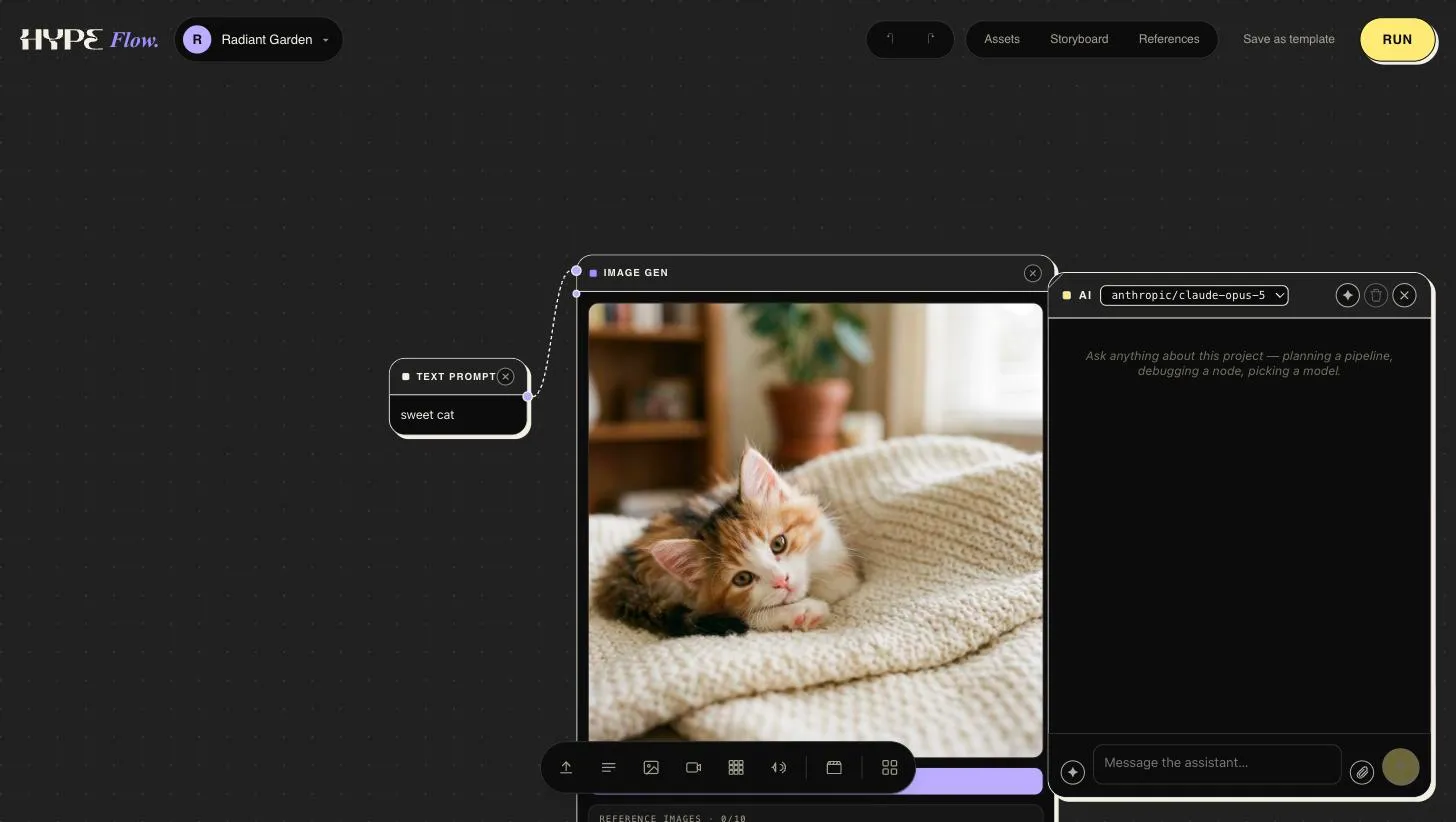
What it can do
Section titled “What it can do”Ask it, in plain language, to:
- Build graphs — “Add a text prompt, an LLM to expand it, and an image gen using Nano Banana Pro, wired in that order.”
- Edit what’s there — “Set every video node to 16:9 and 8 seconds.”
- Run things — “Run the storyboard chain and show me the frames.”
- Work with results — “Regenerate images 3 and 7 of the collection with warmer lighting.”
One sentence in, a wired branch out — here the companion is asked for a voice-over, so it creates the line as a text node and a tuned text-to-speech node, wires them, and tidies the layout:
The companion works with the same graph you see — its changes appear live on
the canvas, and nothing it does is special: you can always adjust or undo by
hand. It’s also where library @-tags shine: mention
@brand_look and the full style description lands verbatim in the prompt it
writes.
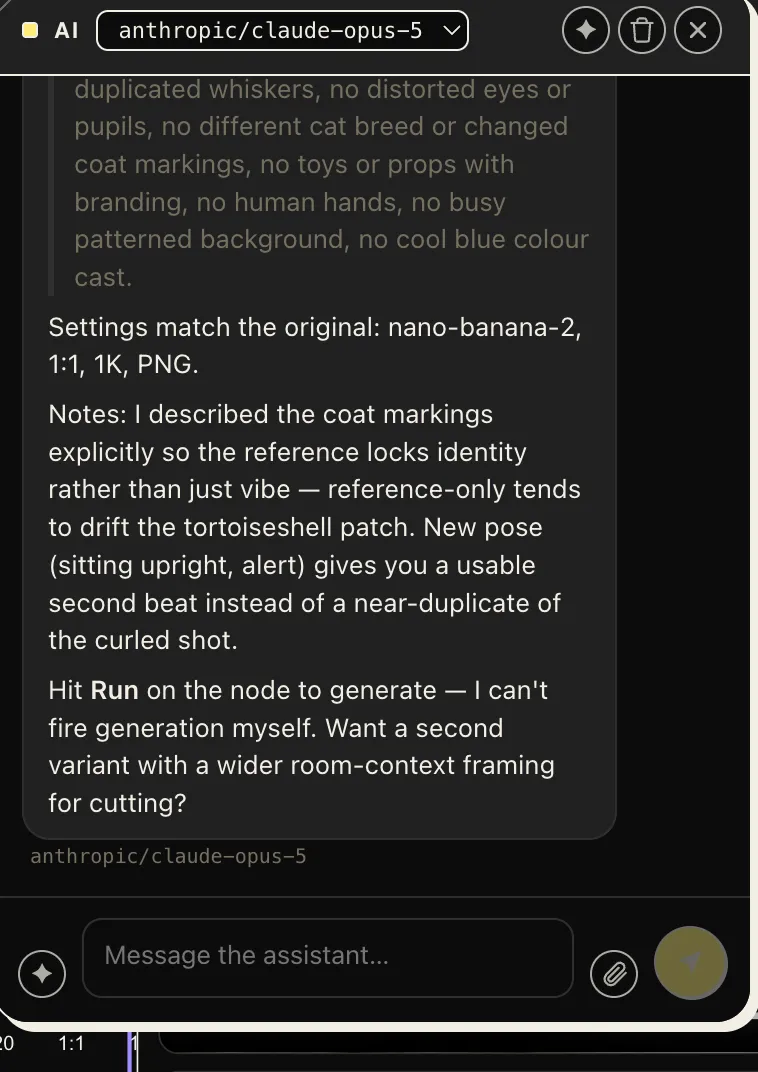
Its replies show the craft, not just the result — here it has built a styled image node with a reference attached, explained why it described the subject explicitly, and suggested the next variant:
- Point at things by name. Node labels and asset names are how the companion finds targets; “the second image input” works, “that one” usually doesn’t.
- Let it wire, you refine. Scaffolding a five-node pipeline is one sentence; getting the prompt exactly right is still your craft.
- Use Tidy after big edits. A batch of chat-added nodes lands functional but dense — one Tidy makes it readable.
Prefer driving from outside the app? The same capabilities are available to Claude over MCP.